
Ever wonder why some businesses skyrocket online while others fall behind? Meta Business Ads Manager puts you in the driver’s seat with a user-friendly dashboard that lets you run ads on Facebook, Instagram, Messenger, and more. It’s like having your own control center where you can set up, watch, and tweak your campaigns while seeing clear, real-time reports. In this article, we’ll show you how to turn basic ad management into a smart tool that boosts your growth.
Getting Started with Meta Business Ads Manager

Meta Business Ads Manager is a robust ad management platform that puts you in charge. It works as a digital ads dashboard tool (think of it as your central spot for handling online ads) that lets you create, track, and adjust your paid campaigns on Facebook, Instagram, Messenger, and Audience Network. This all-in-one interface makes it simple to set up campaigns, run split tests (comparing different ad versions), manage your budget, and use automated tweaks to boost performance.
For instance, imagine starting a campaign with split testing. You set a clear ad objective, pick your target audience, and then let the system compare results to pick the best performer. This control panel not only helps you place ads precisely but also delivers detailed reports so you can fine-tune your strategy in real time.
The pricing is straightforward: you get free access to the tool beyond what you spend on ads, with billing based on reserved placements or auction methods (where ads are priced by bidding). Updated as of August 15, 2025, its advanced features ensure that whether you’re managing a small project or a complex strategy, you always have a powerful tool at your disposal. In short, this platform offers a complete overview and precise control, making it the go-to solution for any business looking to drive growth through smart advertising.
Setting Up Your Meta Business Ads Manager Account

Looking to ignite your ad campaigns? Let’s kick things off with six easy steps to get your Ads Manager account humming along.
-
Enable two-factor authentication and log in to Business Manager.
First, lock down your account by turning on two-factor authentication (a simple extra step that sends you a code to verify your identity). Think of it like adding an extra padlock to your door before you start. -
Click the green Create button to open Ads Manager.
Once you’re in, keep an eye out for that bright green Create button. Give it a click and you’re immediately inside the world of powerful ad tools. -
Link or set up a new ad account.
If you’ve already got an ad account, connect it here. If not, set one up as if you’re starting fresh with a brand new strategy – it’s like inviting an old friend to join your organized setup. -
Declare special ad categories when relevant.
When your campaign covers sensitive topics, be sure to select the right special ad categories. For example, if you’re promoting financial services, mark it accordingly so it meets all guidelines. -
Assign user roles and permissions.
Next, decide who gets to do what. Assign roles like Admin, Advertiser, or Analyst so that everyone sees just the right amount of information while you keep everything under control. -
Configure credential storage and recovery options.
Finally, set up Meta’s credential manager. This way, team access and recovery options are secured and easy to manage, ensuring that even if someone forgets their credentials, you’re covered.
Navigating the Meta Ads Manager Control Panel

Step into a stream-lined workspace built for precision and quick insights. Here, you’ll find Campaigns, Ad Sets, and Ads neatly separated, letting you zero in on every part of your ad strategy. The top toolbar is your best friend for performance checks, it includes date filters, preset report options, and shortcuts to audience and placement tools. Need to see how a campaign fared over a specific day range? Just glance at the toolbar and you’re set.
On the left side, you have a sidebar unlocking a host of handy features. Check out Audiences for managing your target groups, dive into Creative Hub to preview your ad mock-ups, use the Shared Library to store essential assets, and adjust settings to tweak overall configurations. Plus, customizable columns mean you can tailor metrics in real time to keep an eye on what matters most.
Each component is designed with you in mind, making it easy to tweak your reporting setup and quickly grab creative assets as your campaigns evolve.
Crafting Business Ad Campaigns in Meta Business Ads Manager

Building a business ad campaign in Meta Business Ads Manager is all about turning ideas into results with clear steps. First, pick a goal from options like Awareness, Traffic, Engagement, Leads, App Promotion, or Sales. This choice sets the tone for your whole campaign and helps guide every next move. Once you know your aim, you can build your campaign by organizing Ad Sets where you decide on your audience, where your ad shows up, your budget, and the timing, all tailored to your business needs.
Next, it’s time to get creative. Pick a format that fits your vision, whether that’s a single image, a carousel, or a video. Make sure your images or videos line up perfectly with what you want to say. Keeping a consistent naming system is a big help too; it makes tweaking your ads and tracking performance much easier. Good organization also simplifies problem-solving and boosts team collaboration.
Below is a seven-step action list to guide you through the campaign setup:
| Selecting a campaign objective | Choosing Automatic vs. Manual placements |
|---|---|
| Applying consistent naming protocols | Setting daily or lifetime budgets |
| Defining custom, lookalike, or Advantage+ audiences | Scheduling start and end dates |
| Uploading and previewing ad creative across device types |
Each step helps build a stronger campaign. For example, when you set start and end dates, think of it as planning for a live event where timing is everything. This careful setup ensures your ad hits the right people at just the right moment, creating a campaign that truly connects and extends your brand’s reach.
Using Advanced Targeting Settings in Meta Business Ads Manager

Advanced targeting makes your ads smart by letting you pick who sees them. Start with basic filters like age, gender, and location. So, if you’re promoting local events, you can show your ad to people in the right area.
Then come the interests and behaviors. Imagine reaching out to sports fans or tech lovers, people who are naturally drawn to your message. It’s like matching your ad with the right audience, almost by magic.
If you have a list of loyal customers, use it to re-connect and reach similar folks. Customer lists and lookalike audiences work hand in hand, find more people who share traits with your best customers. And with the AI-driven Advantage+ tool (that smart algorithm analyzing patterns and behaviors), your ads become sharper each moment.
Finally, placement options let you choose where your ad appears. Whether it’s on Facebook Feed, Instagram Stories, Messenger Inbox, or even the Audience Network, you get to decide what fits best. Detailed breakdowns by device and placement help you see what works and tweak things as you go.
Managing Budgets and Bidding in Meta Business Ads Manager
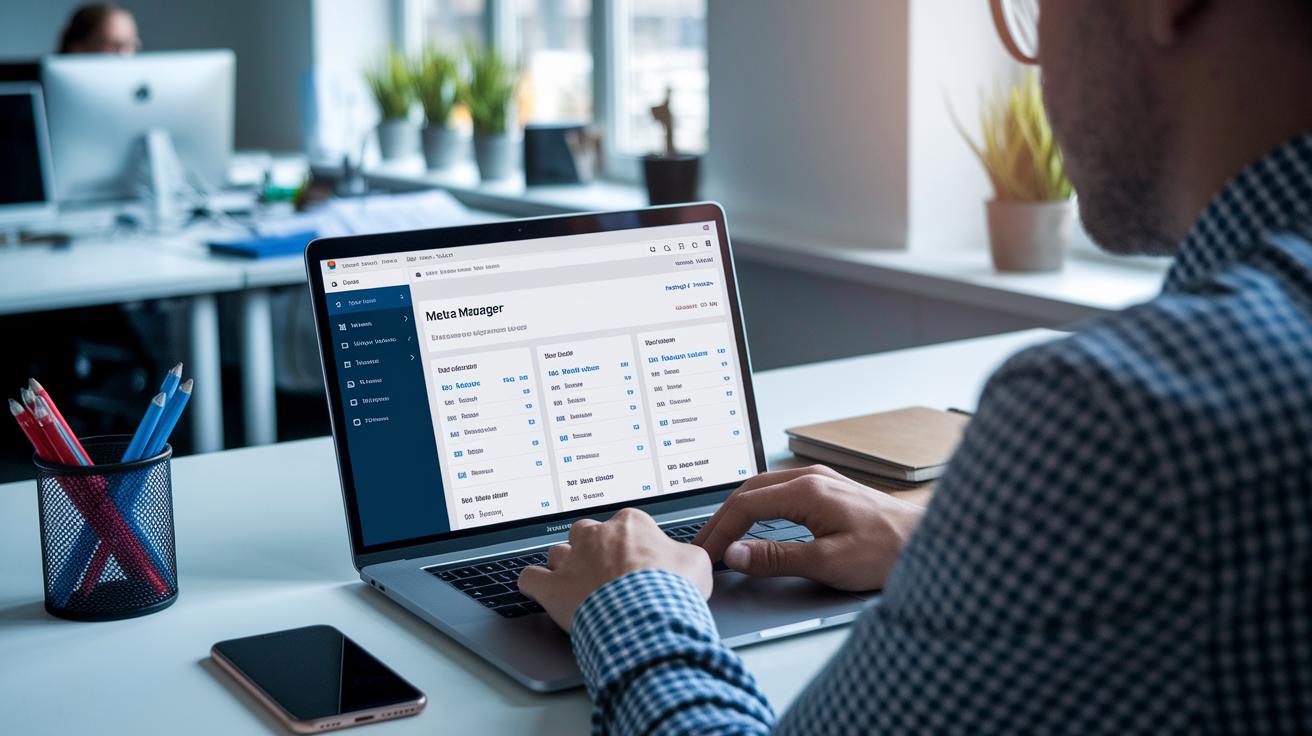
Meta Business Ads Manager gives you a flexible way to manage your ad spend. You can set a Daily Budget to control spending each day, or go with a Lifetime Budget that lets you spread funds over the whole campaign. Daily Budget means tighter control, while Lifetime Budget offers room to adapt as you see overall performance.
Next, think about pacing your ad delivery. Standard pacing spreads your budget evenly all day, making sure your ads reach people steadily. Accelerated pacing spends your funds fast, which is perfect for seizing those quick opportunities when timing is everything.
Bidding options let you fine-tune your approach. Pick Cost Cap (which keeps your cost per outcome steady), Bid Cap (which stops you from overbidding), or Lowest Cost (which lets the system automatically adjust bids to get the best results). Each option helps you align your spend with your goals.
Campaign Budget Optimization (CBO) makes it even easier by automatically shifting funds across your ad sets based on real-time performance. This smart tool ensures your spending supports your campaign goals without going over budget.
Interpreting Meta Ad Analytics in the Ads Manager Dashboard

The numbers in your Meta Ad Analytics tell the full story behind each campaign. By keeping an eye on key stats like impressions, reach, CTR (click-through rate, which shows how many people clicked your ad), CPC (cost per click, or the price for each click), and ROAS (return on ad spend, meaning how much money you earn for every dollar spent), you get a clear picture of how your ads are doing. These numbers are like a friendly nudge, showing what works and what might need a tweak.
| Metric | Definition |
|---|---|
| Impressions | Total times the ad was seen |
| Reach | Unique people who saw your ad |
| CTR | Click-Through Rate, or the percent of viewers who clicked |
| CPC | Cost Per Click, the amount you spend for each click |
| ROAS | Return On Ad Spend, showing how much revenue is earned per ad dollar spent |
Breaking down these stats by details like age, gender, where your ad appears, and the device used opens up a world of insights into how different groups behave. It’s a bit like peeling an onion, each layer helps you see where you can make changes. For example, if your CTR is lower than expected, try mixing up your creative or tweaking your call-to-action. And if your ROAS is looking strong, that might be your cue to invest a bit more to drive even better results.
Regularly saving and scheduling custom reports keeps you in the loop all the time. This steady check-up helps you make quick decisions and keeps your growth on track. For more tips on building and reading custom metric reports, check out this link: marketing data analysis.
meta business ads manager: Empower Your Growth

Optimizing your creative elements is the secret sauce for boosting your ad strategy. The Experiments tool lets you run A/B tests (comparing two versions by changing just one element, like a headline or image) on creative aspects, audience, placement, and type of delivery. You can duplicate an ad, tweak one part, and see which version wins. For instance, one test revealed a playful headline beat the standard version by 30%, proving data-driven tweaks really pay off.
Creative Hub makes things even smoother. It lets you preview your ad mock-ups across devices, tablets, desktops, and phones, so you know exactly how your creative looks everywhere. Once you spot a clear winner from the tests, you can upgrade your live campaign with that top creative. Keep an eye on key numbers like click-through rates and conversion figures (how many people take action) to understand what your audience loves. With ongoing experiments and quick creative tweaks, you’re set for smarter choices and steady growth.
Integrating Meta Business Ads Manager with Cross-Channel Campaigns

When you're lining up your campaigns across social platforms, start by linking your Instagram account and Facebook Shop in Ads Manager. It's like ensuring every touchpoint sings the same tune, keeping your brand message consistent and clear.
Here’s how you can get things running smoothly:
-
Link your Instagram account
Jump into the integration settings in Ads Manager, plug in your Instagram account details, and wrap up the simple verification. It works a bit like syncing your phone with your email, everything connects in no time. -
Keep your creative on point across channels
Upload your visuals and copy through the platform’s interface for Facebook Shops, Instagram, and any other channels. This way, your audience always experiences a unified message, no matter where they spot your ad. -
Expand your reach with Audience Network
Push your campaigns further by tapping into mobile apps and other websites outside the Meta ecosystem. Think of it as turning up the volume on your campaign so more potential customers hear your message.
To top it off, using third-party connectors lets you run your ads on platforms like TikTok, Pinterest, and Threads. This cross-channel strategy makes sure every piece of your campaign is in harmony, driving solid brand growth with results that truly resonate.
Troubleshooting and Best Practices for Meta Business Ads Manager

Running ads can feel like navigating a busy street, you might hit bumps like ads waiting for approval, billing problems, or mismatched user permissions. One smart trick? Check your account regularly. I once had an ad stuck in review because a small detail was missed, and a quick audit made all the difference.
Here are some simple, practical tips to keep your campaigns moving smoothly:
-
Audit your account often.
Set aside a bit of time each week to review ad statuses and look over billing histories. It’s like giving your account a quick health check. -
Use clear naming conventions.
Keeping names simple and consistent helps you quickly spot any issues. -
Refresh your audiences regularly.
Update your target groups on a schedule so your ads keep reaching the right people. -
Increase your budget gradually.
Make small budget tweaks to find that perfect balance without overwhelming your campaign performance. -
Check performance metrics on the regular.
Stop for a moment every now and then to see what’s working and what could use a little adjustment. -
Resolve access conflicts right away.
Make sure roles are set correctly and check permissions often to avoid any user access mix-ups.
Taking these steps can smooth out disruptions while strengthening your overall campaign security. Enjoy the journey and watch your ads perform their best!
Final Words
In the action, this post breaks down how to set up, explore, and optimize your meta business ads manager experience. It covers everything from account setup with secure logins and role assignments to crafting precise campaigns using detailed targeting and A/B testing. Each section paints a clear picture of practical steps, ensuring even routine maintenance resonates with smart, real-world choices. It’s all about keeping your digital ads dashboard management sharp, empowering you to make confident, positive moves in your advertising strategy.
FAQ
What is Facebook Ads Manager?
Facebook Ads Manager is the advanced tool for creating, managing, and tracking ad campaigns across Facebook, Instagram, Messenger, and Audience Network. It gives real-time insights and campaign adjustments.
What is Meta Business Suite?
Meta Business Suite is the unified dashboard that lets you handle Facebook pages, Instagram profiles, and ad accounts in one place, streamlining communications and scheduling for smoother business operations.
How do I access Ads Manager using Meta Business Suite?
Accessing Ads Manager through Meta Business Suite is simple. Once signed into Business Manager, click the green Create button or find the Ads Manager tab in the sidebar for ad campaign setup.
Is Meta Ads Manager free to use?
Meta Ads Manager is free to use beyond your ad spend. You only pay based on your bidding or reservation costs while the platform itself remains no-cost for managing campaigns.
How much do 1000 clicks cost on Facebook?
The cost of 1000 clicks on Facebook depends on your bidding strategy and ad competition. Real-time data in Ads Manager helps estimate costs tailored to your specific campaign settings.
What is the difference between Facebook Business Manager and Ads Manager?
Facebook Business Manager manages pages, ad accounts, and team roles overall, while Ads Manager specifically handles the creation, monitoring, and adjustment of ad campaigns across Meta channels.
What is Instagram Ads Manager?
Instagram Ads Manager is integrated into Facebook Ads Manager, enabling you to design and monitor campaigns specifically for Instagram, using similar tools to optimize creative and audience targeting.
What are Meta Ads?
Meta Ads refer to the paid advertising campaigns created and managed through Meta platforms like Facebook and Instagram, designed to reach defined audiences and drive measurable business outcomes.